mumble instructions
Download mumble here
Below is a video on basic mumble setup including basic audio configuration and setting up the push to talk
Further instructions after video to get it more nicely customized
( you can download a pdf version of these instructions atmumble instructions )
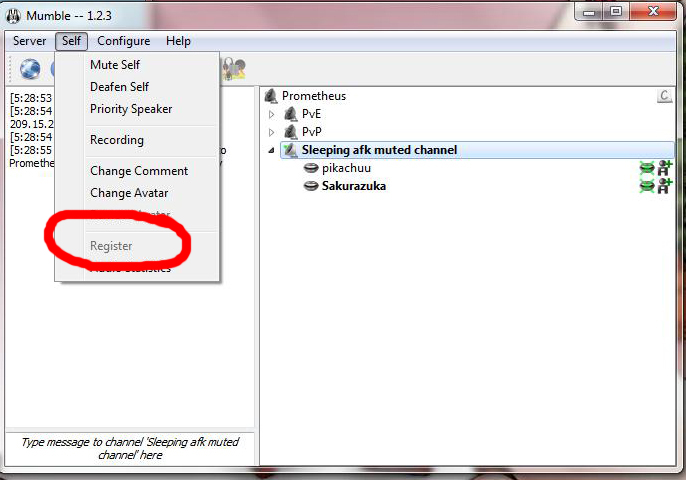
First off, Register you and your certificate. Registering will prevent people from impersonating you on the server
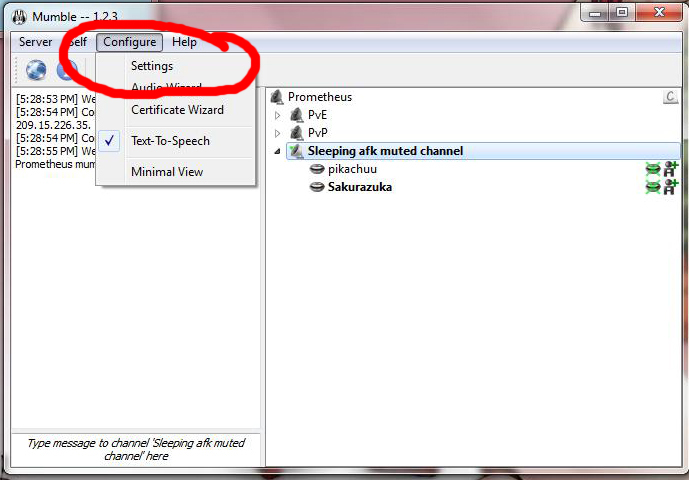
Under the configure heading you can enable or disable text-to-speech, I generally have mine disabled as I don’t like the way the computer reading sounds.
But more importantly go to settings.
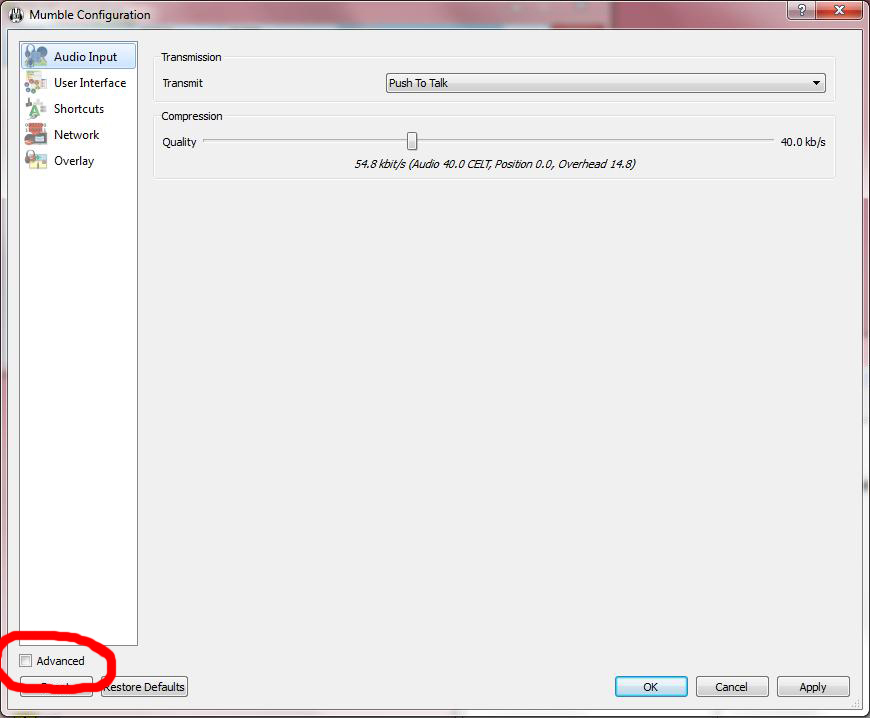
In the settings window, check the advanced checkbox
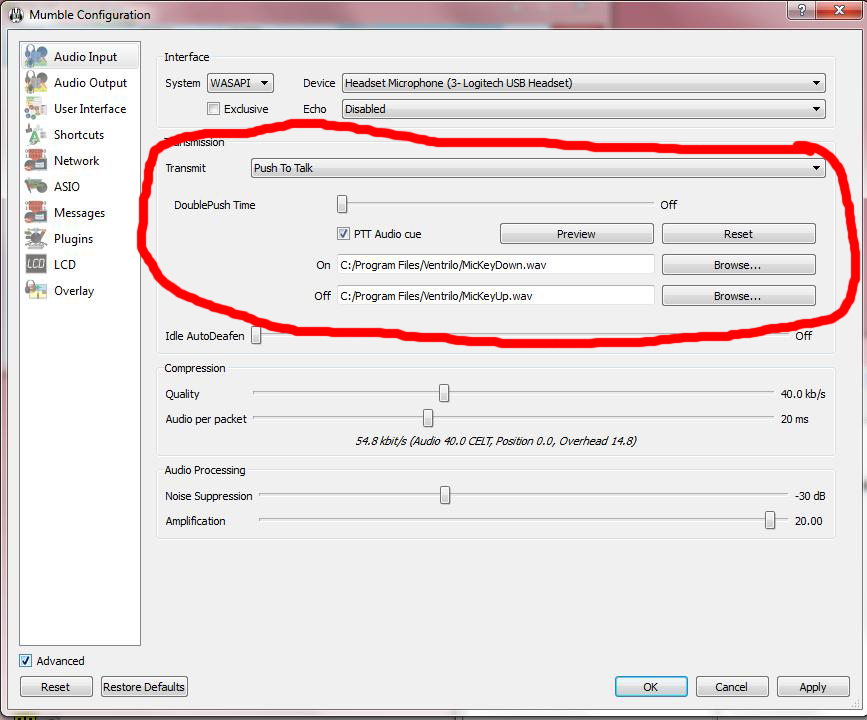
I’ll assume you went through the audio configuration wizard and most of the settings are set up. You may want to enable the PTT audio cue which will tell you when you have your mic active.
I personally set the sounds to be the vent sounds because that is what I have grown accustomed to. YMMV
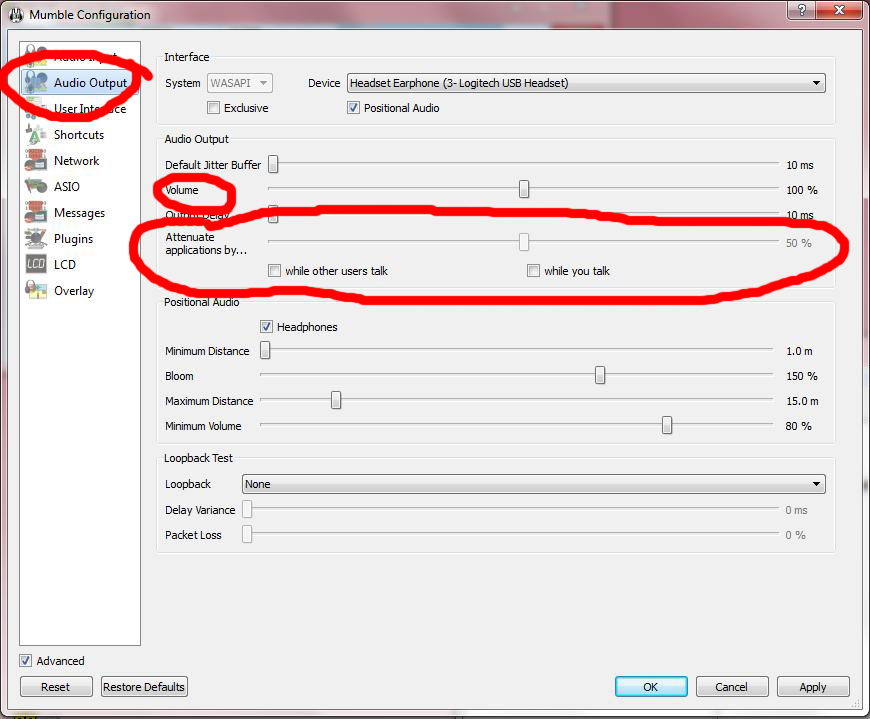
in the Audio Output menu you have many options.
- Volume will allow you to adjust the volume if people are coming in too softly or too loudly. Mumble has an effective auto adjustment to keep everyone at the same level if they have gone through the audio configuration wizard, this will allow you to set a global volume so people won’t be too soft or ear breaking.
- “Attenuate Applications by” allows mumble to adjust the volume of other applications (like the game) when people are speaking. For times when boss chatter is too loud and you can’t hear commands this may come in handy, I used it often when playing games with explosions, but these days hearing DBM warnings can be just as important. I personally have it disabled but unchecking “while others talk” but your needs may vary.
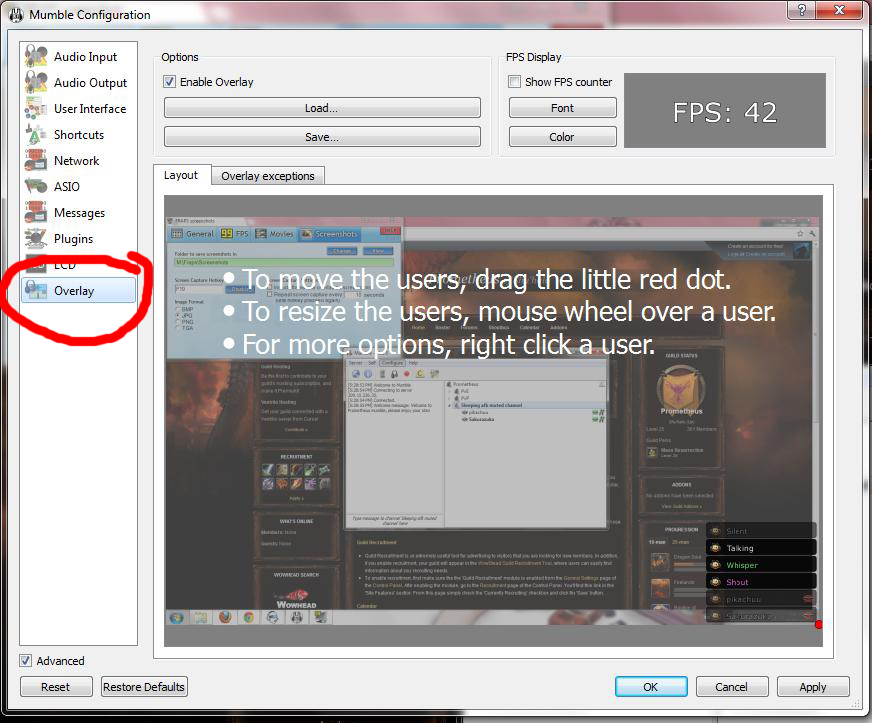
Finally we have the overlay, this is nice in that it’ll allow you to see who’s speaking in mumble without the need of special addons, mods or lcd screens.
I suggest you place it on an area of the screen where the game is not too busy (IE not where boss timers and health bars are located)
*also note, that because this uses the overlay layer, if you’re using another application that uses the overlay (IE netflix) you will need to either disable the overlay with the checkbox above, or turn off mumble while watching netflix.